
Discord Text Tools: The Complete Formatting Toolkit (2026)
If you spend any real time in Discord, you've hit the same wall everyone else has. Markdown looks fine in the text box and ugly in chat. Your "fancy" username copies as plain letters. A long message gets cut at 2,000 characters mid-sentence. Timestamps refuse to render the way you expected.
The fix isn't a bigger Nitro plan. It's having the right tool open in another tab while you write.
This guide is the short version of what each Discord text tool does, when to use it, and the formatting tricks that pair best with it. Bookmark it — every link below points to a free tool that runs in your browser.
The four tools that cover 95% of Discord formatting
Most "Discord text tools" you'll find online are a single fancy-font box with ads. That's fine for nicknames, but it doesn't help when you're writing rules, posting roleplay, sending a long announcement, or trying to color a code block. Here's how the toolkit actually breaks down.
1. Markdown previewer & color editor
If you only use one tool, use this one. Discord renders markdown differently from every other platform, and the only way to know how a message will actually look is to preview it in a real Discord-styled chat box.
Live preview matters. Use the Discord Message Editor to write your message and see exactly how Discord will render it — including spoilers, headers, subtext, and colored code blocks.

Use it for:
- Bold, italic, underline, strikethrough, spoilers
- Headers (
#,##,###) and subtext (-#) - Block quotes and inline code
- Colored code blocks using
diff,bash,yaml,css, and other language hints - Verifying how a message looks before you press send
2. Fancy font / Unicode generator
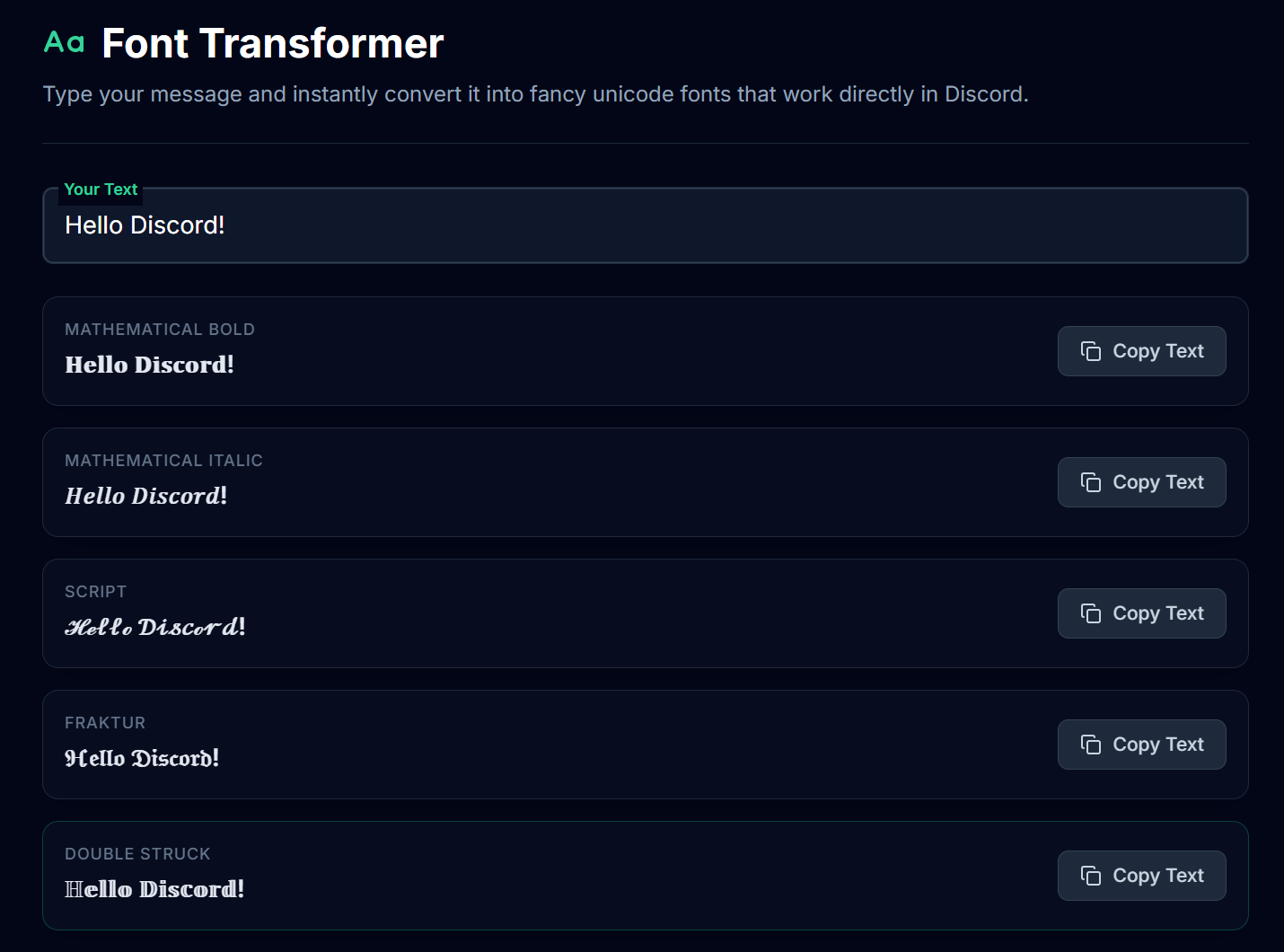
Discord doesn't support custom fonts in chat — every "discord font generator" you've used is actually a Unicode character converter. It swaps your letters for lookalikes that render the same on every device, which is why you can paste them into nicknames and bios.
Need styled text for your name or bio? The Discord Font Transformer converts plain text into bold, italic, script, fraktur, fullwidth, circled, and zalgo Unicode styles you can paste anywhere.
Use it for:
- Server names, channel names, role names
- Discord usernames and display names
- Bio styling (paired with the bio templates)
- Roleplay character names and titles
- One-off accent words inside a message — not entire paragraphs
3. Message splitter (2000-character bypass)
Hitting the 2000-character limit is the most annoying way for a message to get rejected, especially mid-roleplay or mid-tutorial. Manually chopping a long message almost always breaks a code fence, splits a quote in half, or cuts a sentence at a comma.
Stop manually splitting messages. The Discord Message Splitter breaks long text into clean chunks under 2,000 characters without breaking code blocks, markdown, or sentences.
Use it for:
- Long server rules, FAQs, and welcome posts
- Roleplay introduction posts and lore drops
- Patch notes and changelogs
- Any message Discord refuses to send because it's too long
4. Timestamp generator
Dynamic timestamps render as a relative time (e.g. "in 3 hours") and auto-adjust to every viewer's timezone — much better than typing a fixed time in your message.
Timezone-proof your event posts. The Discord Timestamp Generator builds the
<t:1234567890:R>syntax for any date, in any format Discord supports.
Use it for:
- Event announcements (
Rrelative format scrolls down to "in 2 hours") - Maintenance windows (
Flong format) - Birthdays and anniversaries (
Dshort date) - Anything where timezone confusion would derail the message
Discord message formatting cheat sheet
If you're new to Discord markdown, this is the full set of formatting that works in messages, bios, and most embeds.
| Style | Syntax | Result |
|---|---|---|
| Bold | **text** | text |
| Italic | *text* or _text_ | text |
| Underline | __text__ | text |
| Strikethrough | ~~text~~ | ~~text~~ |
| Spoiler | \|\|text\|\| | hidden until clicked |
| Inline code | `text` | text |
| Code block | ```lang\ntext\n``` | colored block |
| Header 1 | # text | large heading |
| Header 2 | ## text | medium heading |
| Header 3 | ### text | small heading |
| Subtext | -# text | tiny gray text |
| Block quote | > text | indented quote |
| Multi-line quote | >>> text | indented quote (rest of message) |
| Masked link | [text](url) | hyperlink (DMs and some channels only) |
You can combine most of these — ***bold italic***, __**bold underline**__, and so on. The message editor shows you exactly what nests and what breaks.
How to fake colored text in Discord
Discord doesn't have a color picker, but you can abuse syntax highlighting in code blocks to get red, green, cyan, blue, yellow, and orange text. The trick is wrapping your text in a triple-backtick code block with a language hint that highlights the words you wrote.
- Red text (use diff, prefix with -)
+ Green text (use diff, prefix with +)
"Cyan text using bash"
key: blue text using yaml
The full cheat sheet (including ANSI color codes, which support more colors but break on mobile sometimes) is covered in our Discord colored text guide. All of these can be tested live in the message editor before you paste them into your server.
Picking the right tool for the job
Quick decision guide:
- "My message looks weird in chat." → Message Editor
- "I want a stylish username or bio." → Font Transformer + Bio Templates
- "My message won't send — too long." → Message Splitter
- "My event time keeps confusing people." → Timestamp Generator
- "I want colored text in my announcement." → Message Editor (use code blocks)
- "What's the exact syntax for X?" → Text Tricks cheat sheet
- "I'm writing a roleplay intro." → Message Editor for styling, then Splitter if it's long
Common mistakes that break Discord formatting
A few patterns to avoid, because they catch nearly everyone the first time.
- Typing markdown inside a code block. Anything between triple backticks renders literally. That's the whole point of code blocks.
- Mixing single and double underscores.
_italic_and__underline__use the same character, and___combined___does both at once. Test it before you trust it. - Spoilers in headers. Discord ignores
||formatting inside# headers. Put the spoiler on its own line. - Smart quotes from a word processor. Copying from Google Docs or Word can replace
"with"or", which breaks code-block language hints. Always paste through a plain text editor first. - Custom emoji in code blocks. They render as raw
:emoji_name:text. Move them outside the block.
Where to go next
Once you have the basics down, these guides go deeper on the topics most people search for:
- How to make text small, colored, or hidden in Discord
- Discord text formatting cheat sheet — every trick and command
- Discord colored text generator: every color and how to use it
- Discord fancy text & font generator guide
- Discord roleplay formatting guide
- Discord 2000 character limit explained
- Discord timestamp guide
Bookmark this page and use it as your launchpad. Every tool on it is free, runs in your browser, and never sees your message text.